
Generate Word, Excel and PowerPoint documents from Node.js using ETCH
Design a template in Office, combine it with data from Node.js and produce a finished Word, Excel or PowerPoint document
Using ETCH with JavaScript and Node.js to generate Word, Excel and PowerPoint documents is very straightforward. In this post we'll walk through the initial installation and some simple examples.
Everything covered here is also available in our examples repository, so you can clone it and run each one yourself.
Before you start
You need Node.js 22 or later, and an ETCH account. The free plan is enough for everything in this post. From the dashboard you need two things:
- a package token, from the Integrations page, so your package manager can download the client;
- an API key, from the API keys page, which your code uses to call ETCH.
The client is published via the ETCH package registry rather than npmjs.com. Make a project:
mkdir etch-hello
cd etch-hello
npm init -y
Then create a file called .npmrc in the project folder, with these two lines:
@get-etch:registry=https://packages.get-etch.app/npm/
//packages.get-etch.app/npm/:_authToken=${ETCH_TOKEN}
The first line means npm fetches only @get-etch packages from the ETCH registry and everything else from npmjs.com as usual. The second reads your token from the ETCH_TOKEN environment variable. Then give npm your token and install:
export ETCH_TOKEN=<your package token>
npm install @get-etch/etch-client
The token stays in your environment and isn't written to any file in the project. If you use pnpm, Yarn or Windows, the install guide has the commands.
Finally, set your API key:
export ETCH_API_KEY=<your API key>
Your first document
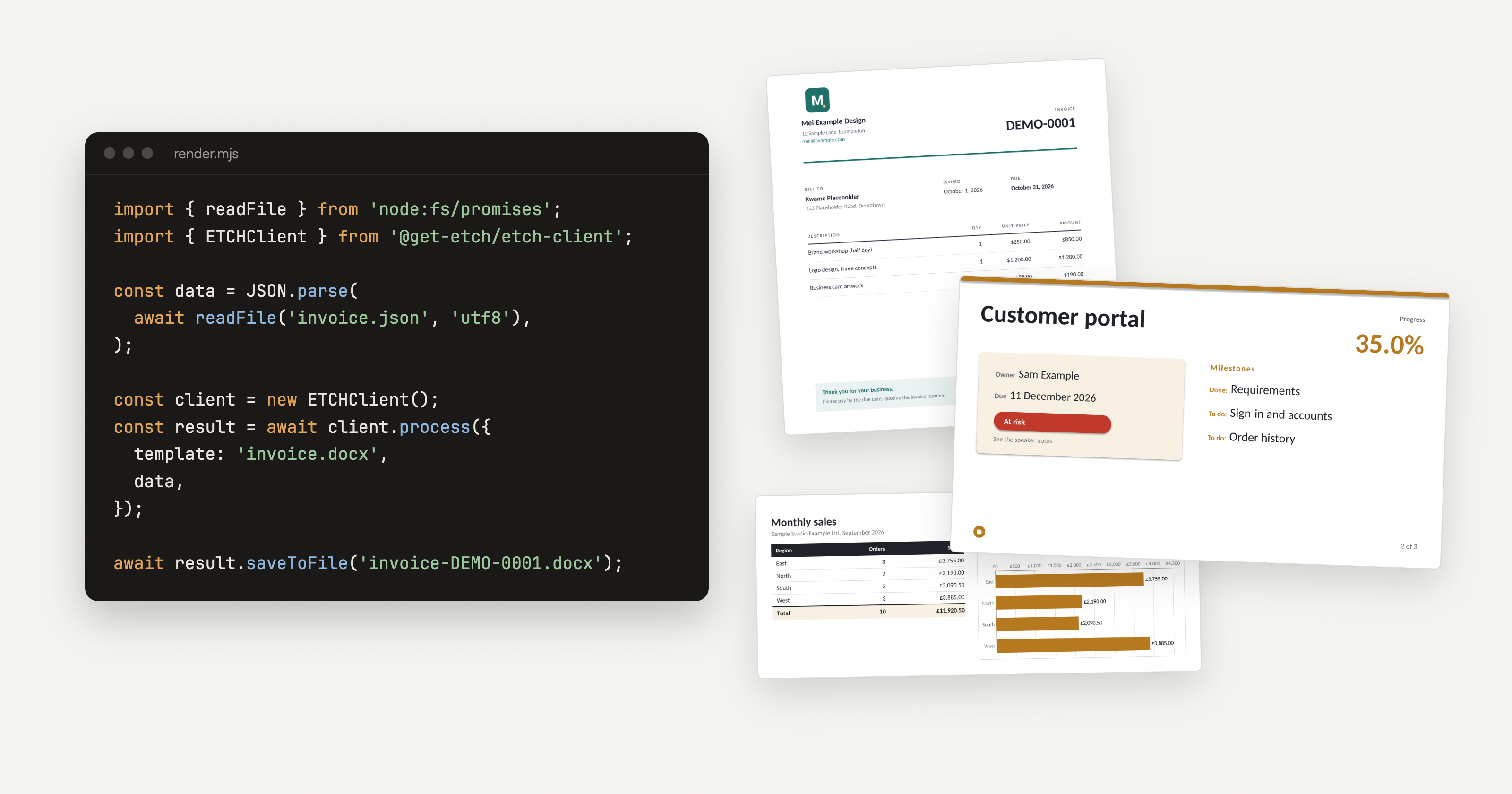
Here's the whole program for the first example. It reads the data from a JSON file and renders an invoice template:
import { readFile } from 'node:fs/promises';
import { ETCHClient } from '@get-etch/etch-client';

const data = JSON.parse(await readFile('invoice.json', 'utf8'));

const client = new ETCHClient(); // reads ETCH_API_KEY
const result = await client.process({ template: 'invoice.docx', data });

await result.saveToFile(`invoice-${data.number}.docx`);
Save it as render.mjs, run it with node render.mjs, and you get a Word document. On the left is the template, an ordinary Word file; on the right is what came back:
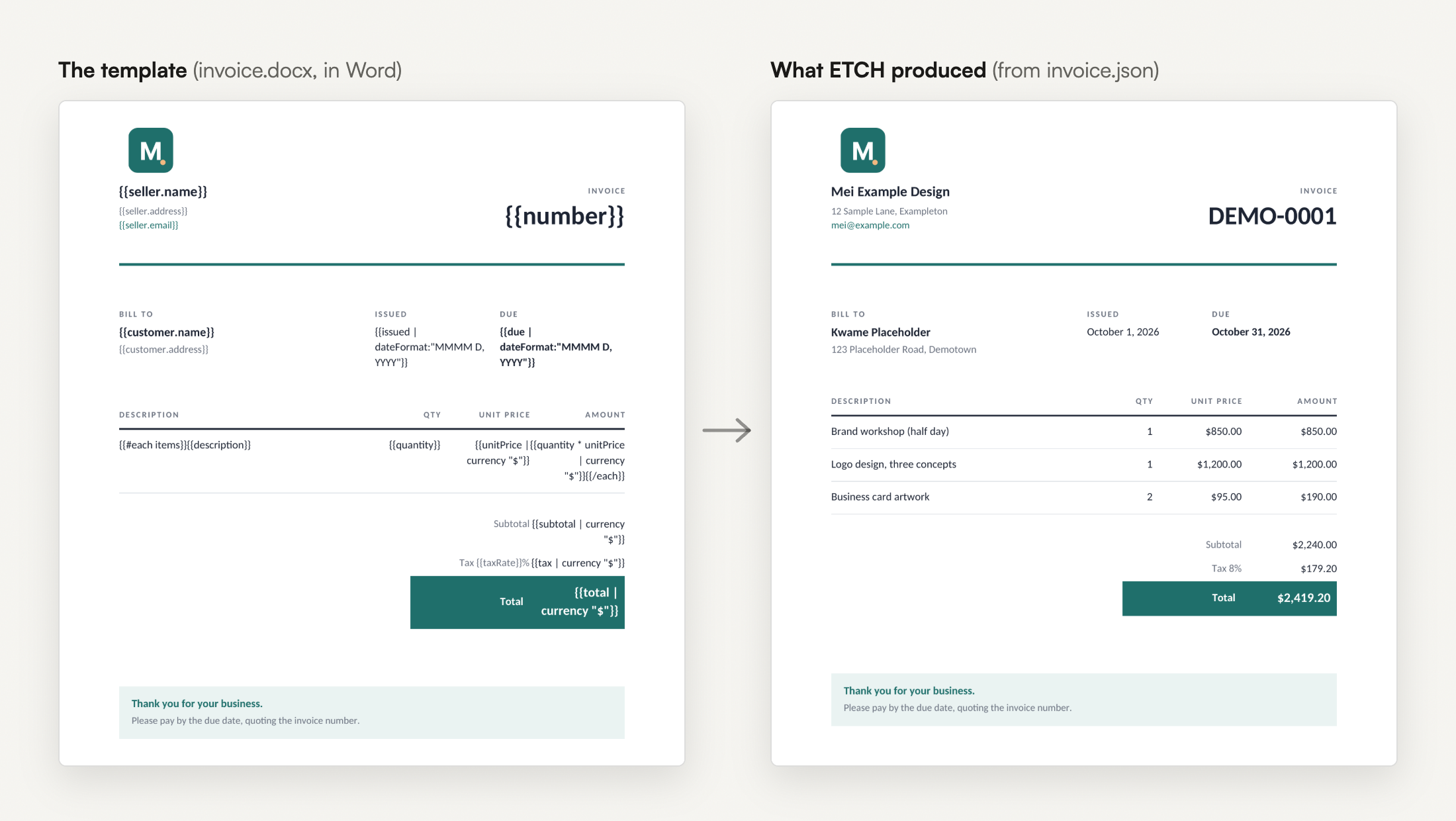
Each tag names a field in the data. {{customer.name}} becomes "Kwame Placeholder", and {{unitPrice | currency "$"}} formats a number as money. The line items row starts with {{#each items}} and ends with {{/each}}, so it's repeated once for each item. The fonts, colours and spacing all come from the template, so if someone wants the invoice to look different, they change the Word file and the code stays as it is.
The data doesn't have to come from a file, so you can build it from a database query or an API response or a URL etc.
Using TypeScript? The types come with the client.
Adding a logo
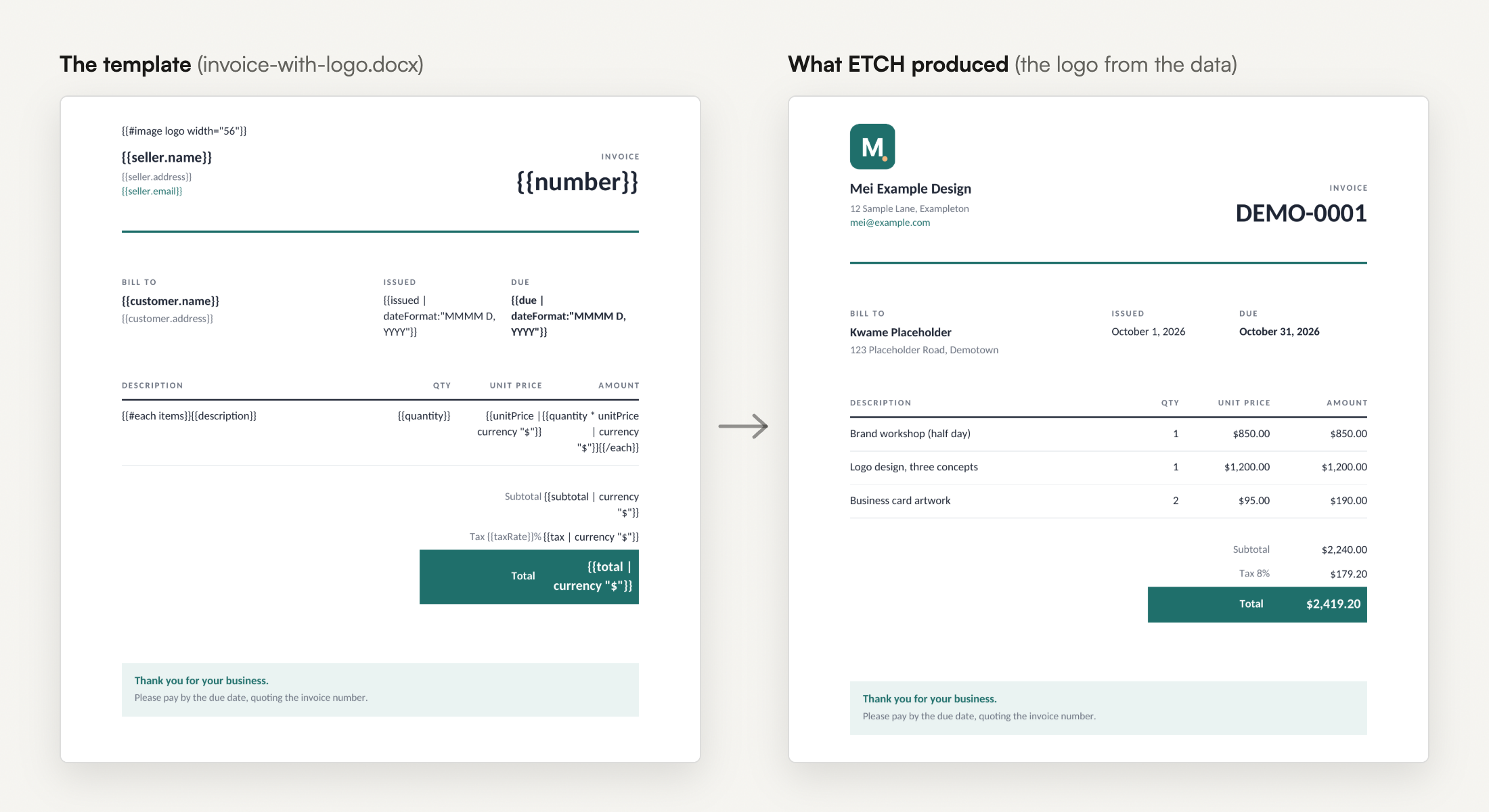
Let's add a picture into the data, as a data: URI. The client has a helper that makes one from a file:
import { ETCHClient, imageFromFile } from '@get-etch/etch-client';

data.logo = await imageFromFile('images/logo.png');
In the template, {{#image logo width="56"}} marks where it goes and how wide it is. Each customer's documents could carry their own logo this way, from the same template.
QR codes and barcodes
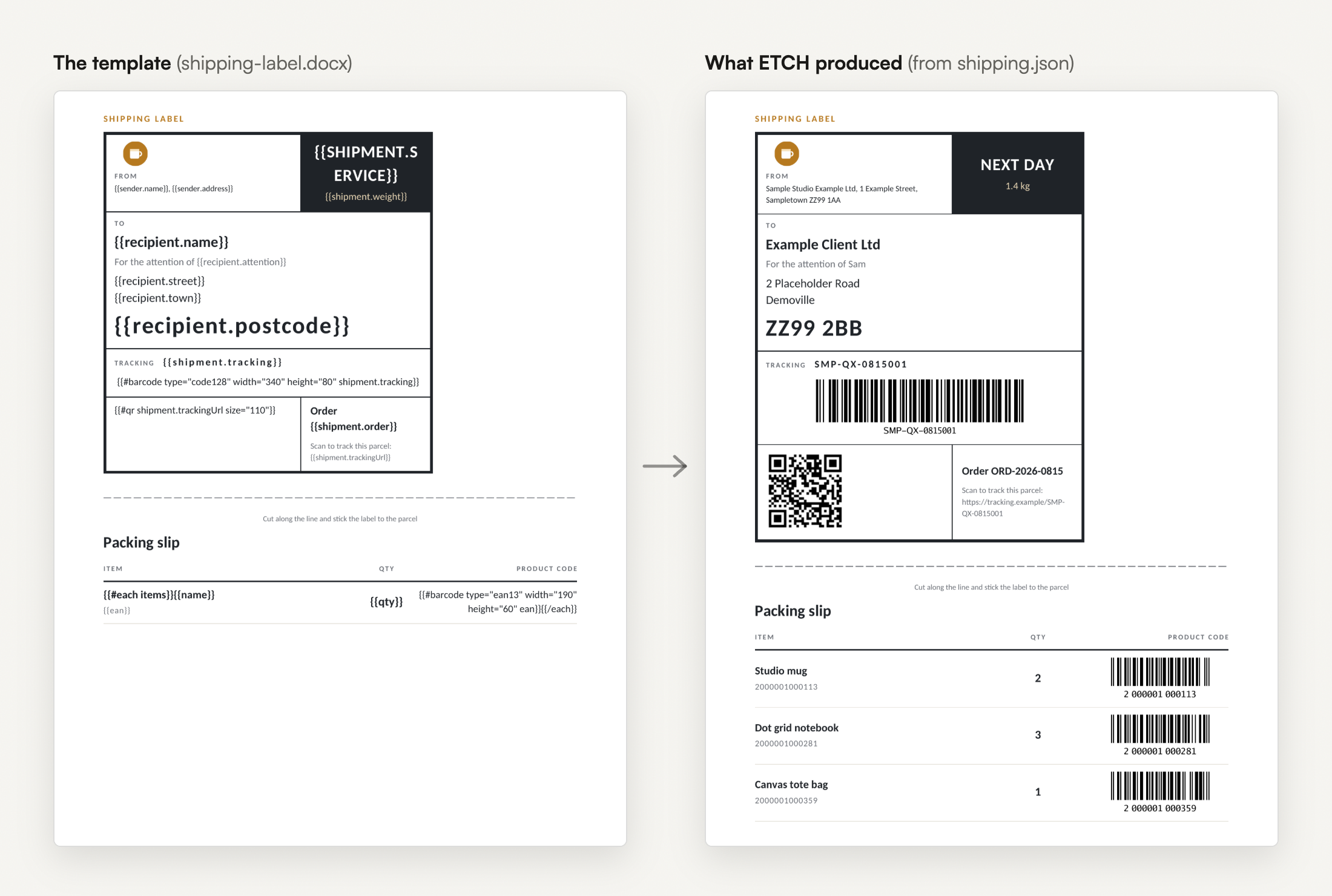
You can generate QR codes and barcodes from the data too. The shipping label example uses three tags:
{{#barcode type="code128" width="340" height="80" shipment.tracking}}
{{#qr shipment.trackingUrl size="110"}}
{{#barcode type="ean13" width="190" height="60" ean}}
The first draws the tracking number as a Code 128 barcode, the second a QR code of the tracking page's address, and the third, inside the packing slip's loop, an EAN-13 barcode for each product. The JavaScript code is the same as for the invoice. Only the template and the data have changed.
Excel
To generate a workbook, use an Excel template.
The sales workbook has a summary row with {{#each regions}} at the start and {{/each}} at the end, which becomes one row per region. The total underneath is an ordinary Excel formula, =SUM(C5:C5), and ETCH stretches it to cover the new rows. The chart beside it was drawn in Excel over that same row, and its ranges grow in the same way, so it shows a bar for every region. A second sheet, marked with {{#sheet-each regions}}, is copied once per region and named after the region.
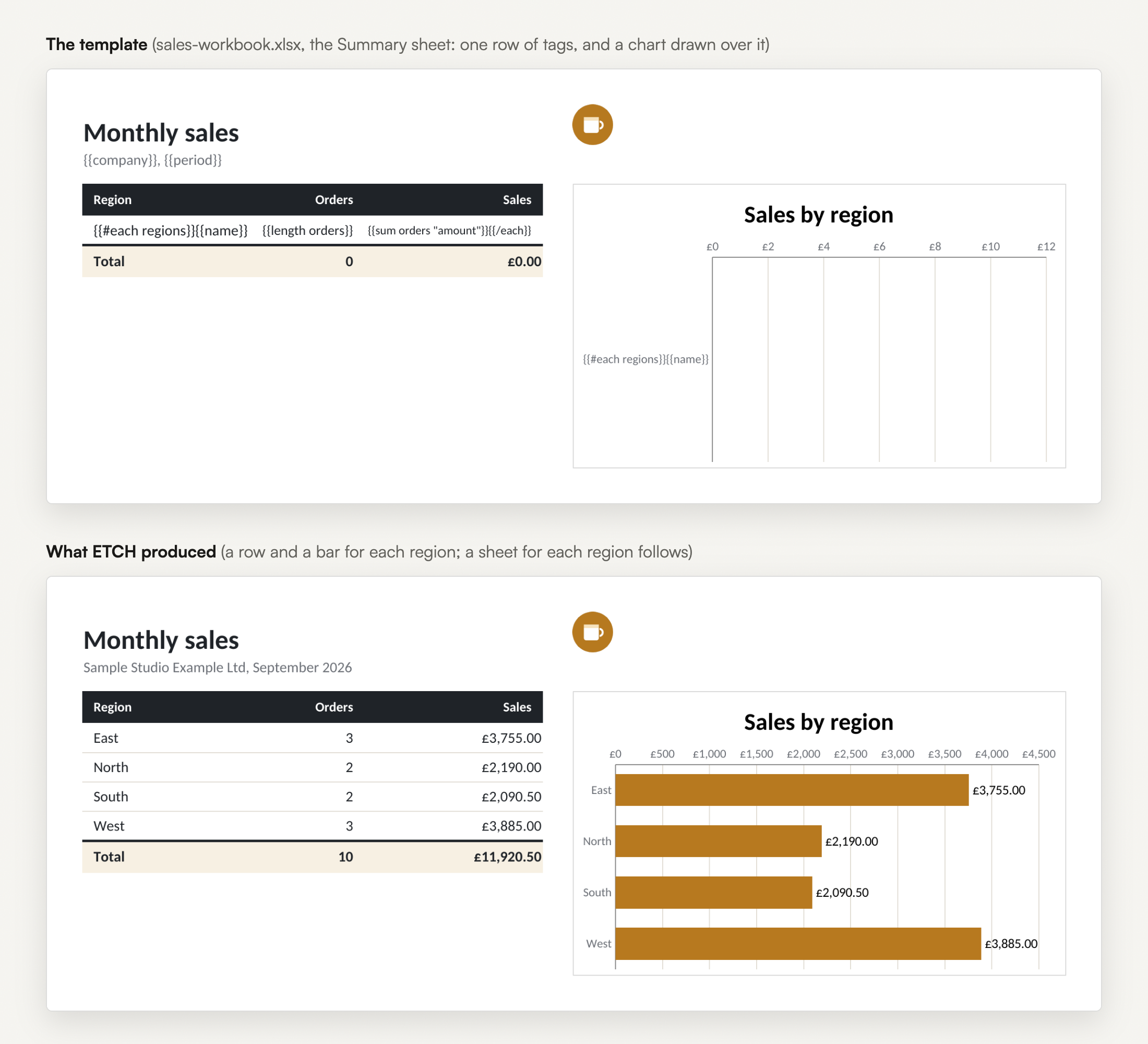
The numbers become native Excel numbers, so the formulas and number formats in the template still work with them.
PowerPoint
The project update deck has three slides in the template, and the finished deck has five. The middle slide starts with {{#slide-each projects}}, so ETCH makes a copy of it for each project, and the milestones on each slide come from a loop of their own.
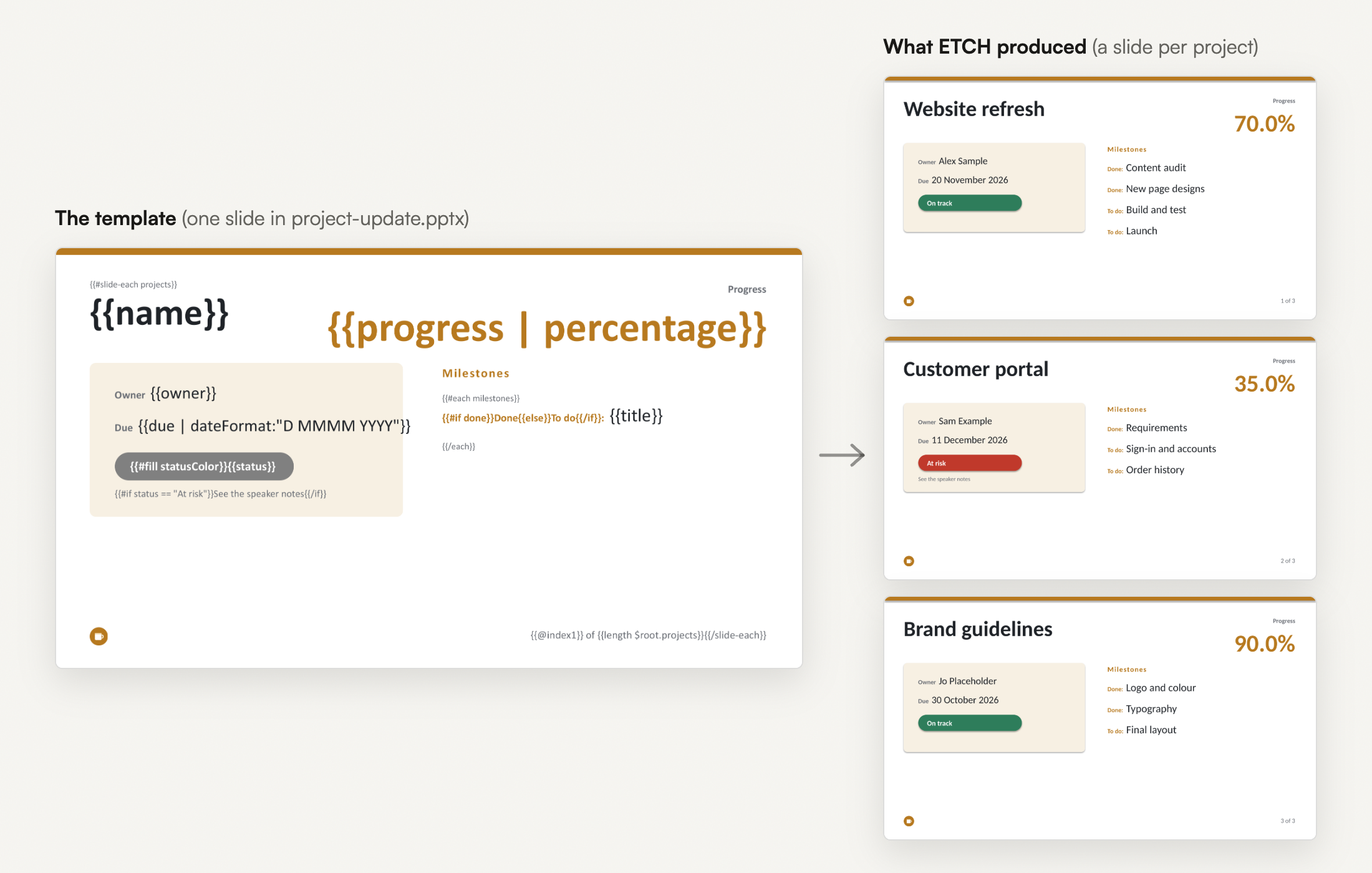
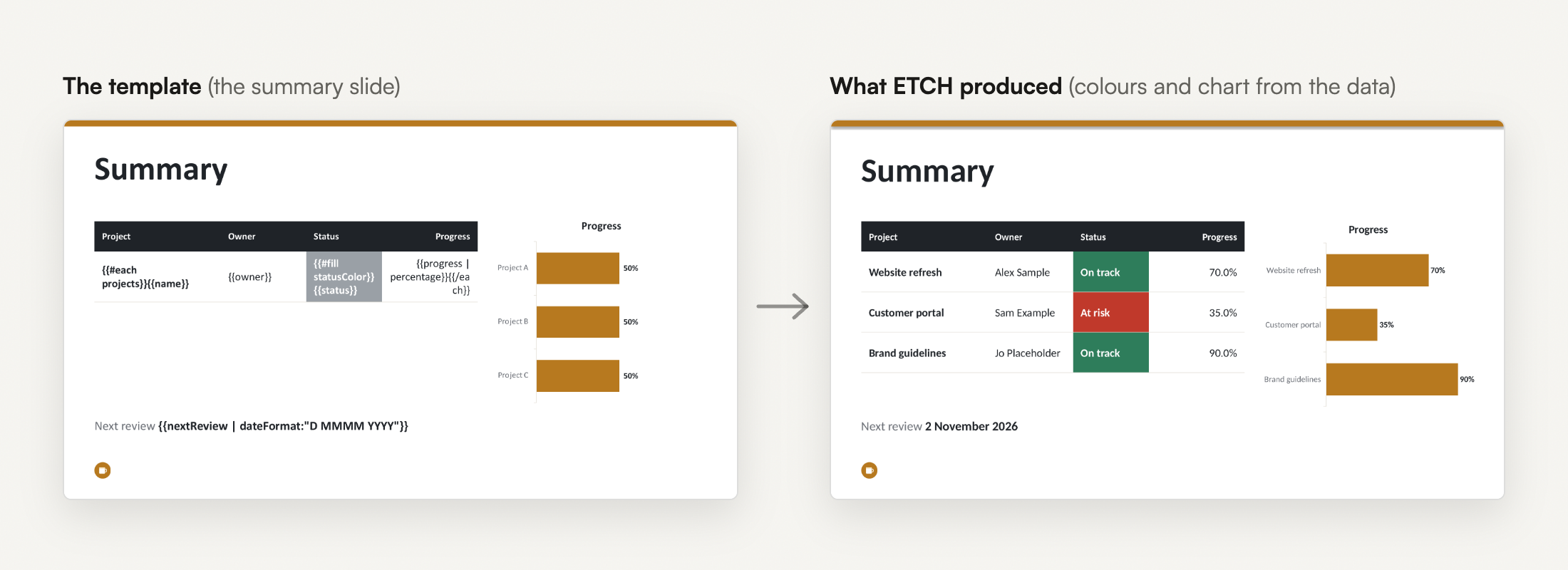
The status colour comes from the data. Each project has a statusColor such as C0392B, and the pill's text starts with {{#fill statusColor}}, which fills the shape with that colour. The same goes for the table cells on the summary slide.
The chart on the summary slide is one I drew and styled in PowerPoint with placeholder figures. Its Alt Text holds {{#chart projects x="name" y="progress"}}, so ETCH replaces the placeholder bars with one per project and keeps the colours and labels I gave it. The tag is easy to miss when you open the template, because it isn't on the slide. To see it, right-click the chart and choose View Alt Text.
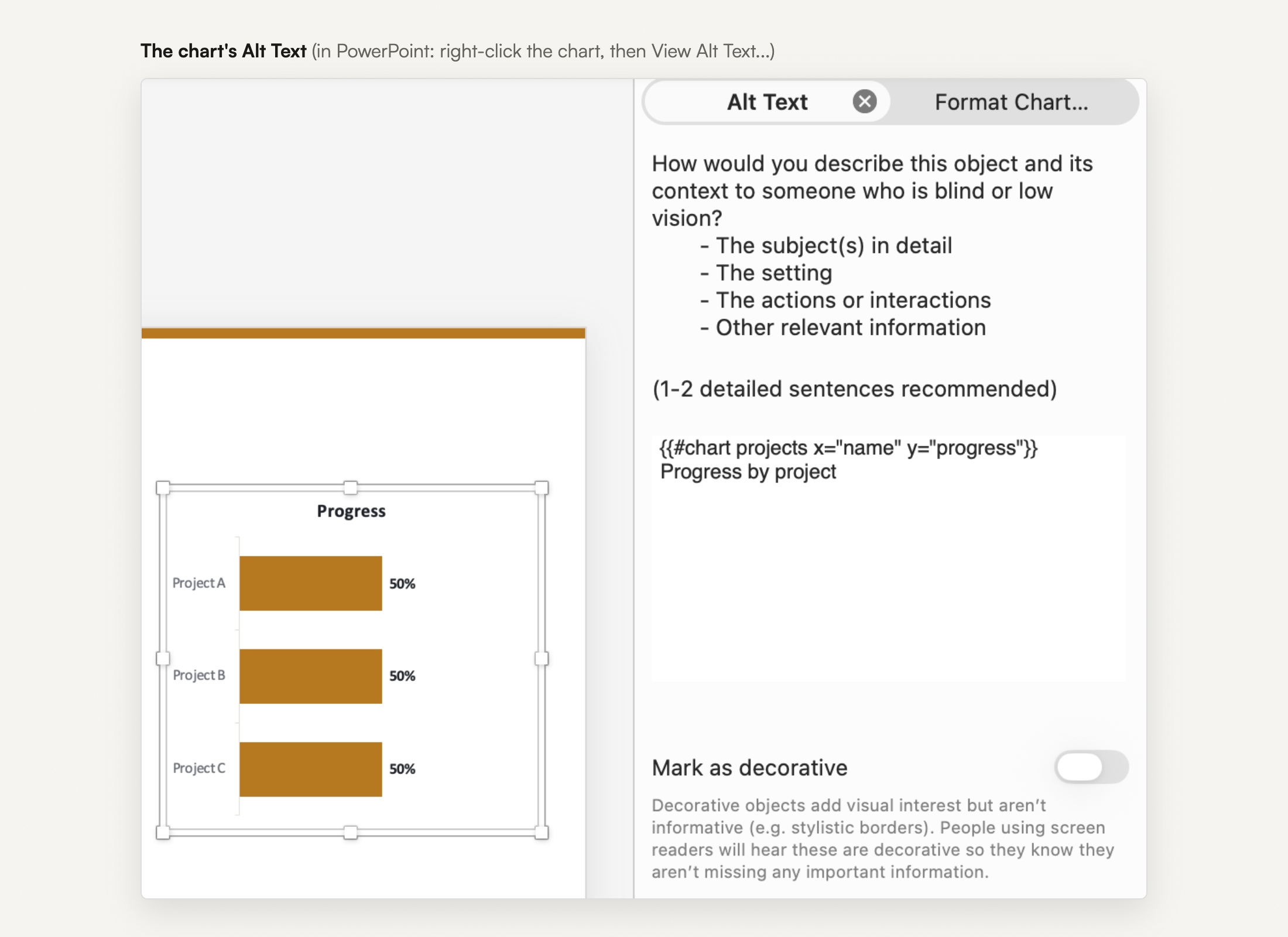
Anything after the tag is kept as the finished chart's Alt Text, so in the deck ETCH produces, a screen reader still hears "Progress by project".
PDF and multiple documents at once
You can easily change the output format to PDF by adding outputFormat to the request:
const pdf = await client.process({
  template: 'invoice.docx',
  data,
  outputFormat: 'pdf',
});
And when you have multiple records, such as a month of invoice data, you can send them in one request. The batch template starts with {{#document-each invoices filename="invoice-{{number}}.docx"}}, and renderBatch returns one document per invoice:
const result = await client.renderBatch({ template: 'invoice-batch.docx', data });

console.log(`Rendered ${result.succeeded} of ${result.total} invoices`);
await result.saveAll('output/invoices');
await result.saveArchive('output/invoices.zip');
If one record has a problem, it will fail in isolation, and result.failures tells you which one failed. The other documents still come back.
Where to go next
The JavaScript examples have 28 of these, each with a README. They cover conditionals, formatters, helpers that add up and rank figures in the template, reusable blocks, stored templates, error handling and running several renders in parallel. The Node.js video builds the invoice template in Word from scratch, renders it from a short Node script, and then makes an Excel workbook with the same code.
You can sign up for the free plan, which gives you 200 documents a month and includes the client libraries. The same examples exist for Python, which has its own post, and for Java, whose post is coming next.
Comments
Join the discussionNo comments yet. Be the first to comment.